How to Organize Digital Scrapbook Files
Learn how to organize digital scrapbook files with folder systems, naming conventions, tags, backup strategy, cloud storage, and practical workflow tips for printable kits and digital ephemera.
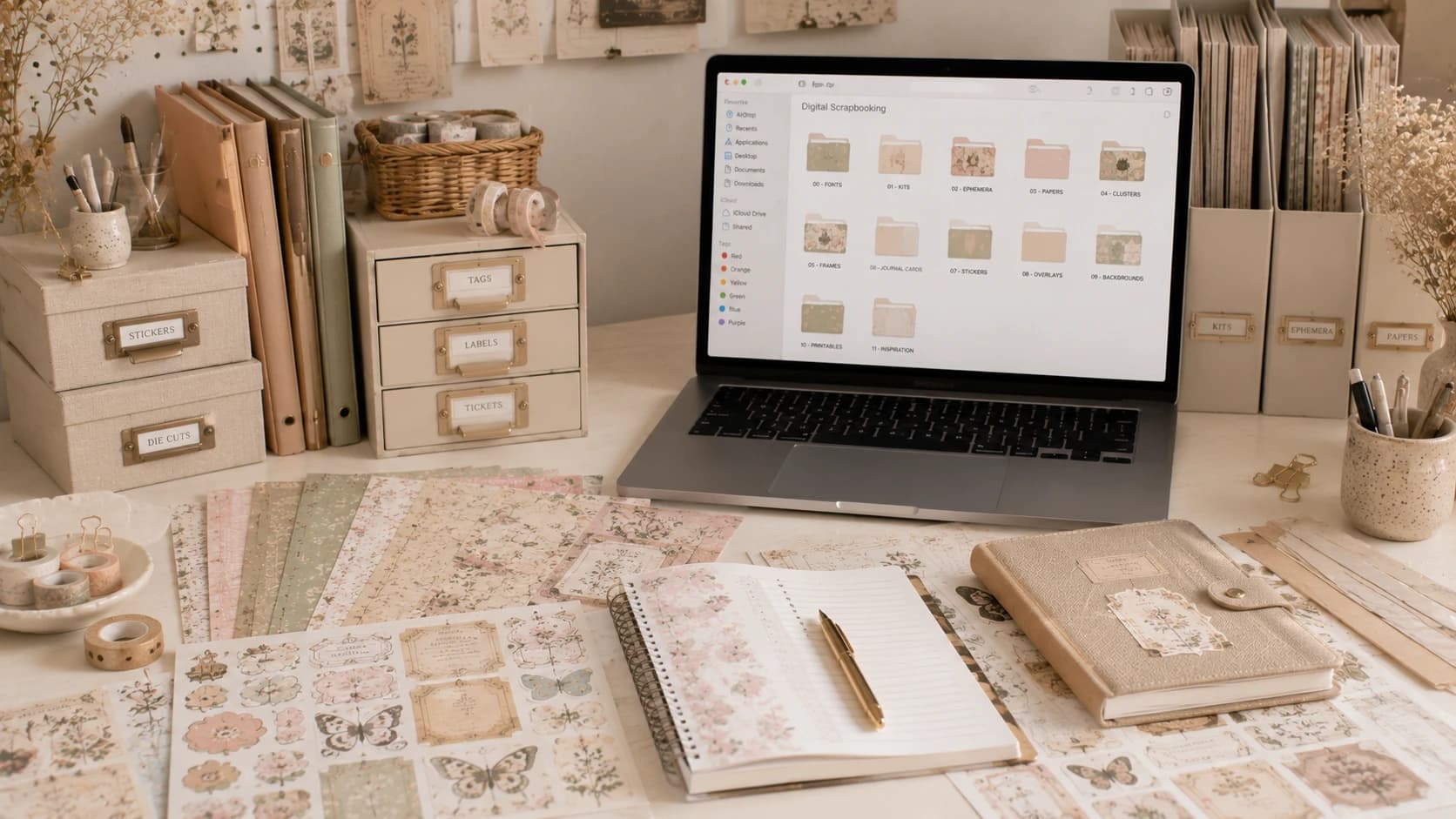
If you have ever spent 40 minutes searching for one floral tag, one matching paper, or that perfect printable label you know you downloaded last month, this article is for you.
Good creativity needs good structure.
When your files are messy, your energy leaks into searching, renaming, and duplicate downloads instead of actual making. But when your system is clean, your sessions become faster, calmer, and far more enjoyable.
This guide is a complete practical system to organize digital scrapbook files for long-term use. It is built for real creative life: printable kits, digital ephemera, tags, stickers, backgrounds, project exports, planner assets, and journal archives.
You will learn:
- how to build a folder structure that scales,
- naming conventions that are actually useful,
- how to use tags and metadata,
- how to sort by theme without chaos,
- how to organize printable kits and ephemera,
- how to create a backup + cloud strategy,
- and how to keep everything fast even as your library grows.
If you want better scrapbook file organization, start here.
Why File Organization Matters More Than People Think
For digital scrapbookers, your file library is your studio.
A disorganized library causes:
- repeated purchases/downloads,
- inconsistent page aesthetics,
- lost creative momentum,
- version confusion,
- and avoidable stress.
A clear structure gives:
- faster project setup,
- cleaner visual direction,
- better reuse of existing assets,
- and stronger consistency in your style.
In short: better system -> better pages.
Step 1: Build a Folder Structure That Scales
The most common mistake is creating folders by impulse (“new stuff,” “random,” “to sort later”). Instead, use a predictable hierarchy.
Recommended master structure
Digital-Scrapbook-Library/
  00-Inbox/
  01-Kits/
  02-Ephemera/
  03-Papers/
  04-Elements/
  05-Projects/
  06-Exports/
  07-Archives/
  99-Backup-Logs/
Why this works
00-Inboxis temporary intake only.- Main folders are by function, not mood.
ProjectsandExportsstay separate from source assets.Archiveskeeps old but still useful sets.
Never skip an Inbox
Your inbox prevents random files from contaminating your core library. New downloads enter here first, then get sorted in batches.
Step 2: Sort by Theme Inside Functional Folders
Creators often ask: “Should I sort by theme or by file type?”
The best answer: both.
Hybrid model
Use function first, then theme:
01-Kits/
  Botanical/
  Celestial/
  Cottagecore/
  Kawaii/
  Vintage-Library/
02-Ephemera/
  Botanical/
  Tickets/
  Labels/
  Maps/
  Stamps/
  Letters/
This keeps retrieval fast and avoids “everything in one giant theme folder.”
Garden and floral collections are a perfect example: one kit can feed both Kits/Botanical and Ephemera/Botanical depending on what you extracted.
Step 3: Naming Conventions That Save Hours
Good names eliminate search pain.
Naming format (recommended)
[theme]_[asset-type]_[descriptor]_[size-or-variant]_[language-if-needed]
Example:
botanical_tag_herbarium_set-a_en.pngcelestial_paper_moonwash_12x12.jpgvintage_label_postal_red-mini.png
Folder naming rules
- Use hyphen or underscore consistently.
- Avoid spaces if possible.
- Keep singular/plural consistent (
Tagsnot sometimesTag). - Use clear English keywords even in bilingual workflows for search consistency.
File naming rules
- No final files called
final_final_v2_realfinal. - Add versions intentionally:
v01,v02,v03. - Include date only if it helps workflow (
2026-05), not by default.
Step 4: Organizing Printable Kits Properly
Kits are often the largest files in your library and the hardest to manage.
Kit folder template
01-Kits/Cottagecore/kit-mystic-cottagecore/
  cover/
  papers/
  ephemera/
  stickers/
  cards/
  preview/
  license/
Why this matters
When every kit follows the same internal structure, your brain no longer “relearns” where things are each time.
Keep original + extracted assets
Best practice:
- keep original kit package untouched,
- create a curated working copy with renamed key assets.
This gives both archival safety and practical usability.
Step 5: Digital Ephemera Organization (The Real Bottleneck)
Most creators have more ephemera than they can track. This is where system discipline pays off.
Ephemera categories worth using
- tags
- tickets
- labels
- stamps
- letters
- maps
- frames
- mini cards
Suggested path
02-Ephemera/
  Labels/
    Vintage/
    Botanical/
    Minimal/
  Tickets/
    Travel/
    Postal/
  Tags/
    Floral/
    Library/
Add “favorites” curation
Create:
02-Ephemera/_Favorites-Quick-Use/
Keep 100-200 high-use assets here. This is your “fast palette” when you want to create without searching.
Step 6: Tags and Metadata for Instant Search
Folder structure alone is not enough for big libraries.
Use OS tags (or asset manager tags) to add cross-folder search power.
Useful tag dimensions
- Theme:
botanical,celestial,kawaii,vintage - Mood:
soft,dark,romantic,playful - Color:
sage,blush,cream,indigo - Use-case:
planner,junk-journal,card,tag - Priority:
favorite,high-use,test-needed
Tagging rule
Tag only high-value assets first. Do not attempt to tag 10,000 files at once. Build metadata progressively.
Library-style assets benefit hugely from tagging because they often overlap categories (labels + letters + cards + stamps).
Step 7: File Formats and Storage Hygiene
Knowing which formats to keep avoids bloat and confusion.
Format guide
| Format | Best For | Notes |
|---|---|---|
| PNG | Stickers, transparent assets, overlays | Keep transparency-safe |
| JPG | Full papers, previews | Smaller files, no transparency |
| Printable sheets, bundle delivery | Good for print workflow | |
| PSD/AFDESIGN | Editable masters | Keep in project/master folder only |
| WEBP | Web previews | Not ideal for all print workflows |
Practical rule
- Keep one “master” editable format.
- Keep one “print-ready” format.
- Remove unnecessary duplicates.
Step 8: Backup Strategy (Local + Cloud + Offline)
No organization system is complete without backup.
3-2-1 backup model (recommended)
- 3 copies of important data,
- 2 different storage media,
- 1 copy offsite (cloud or external at another location).
Example setup
- Main working drive (local SSD)
- External backup drive (weekly clone)
- Cloud backup (daily sync for key folders)
What to backup first
Priority order:
- original kit downloads/licenses,
- curated library,
- active projects,
- exports.
Do not rely only on cloud sync. Sync is not the same as versioned backup.
Step 9: Cloud Storage Without Chaos
Cloud helps collaboration and safety, but can create duplicates if unmanaged.
Cloud folder strategy
Cloud-Scrap/
  Library-Index-Only/
  Active-Projects/
  Shared-Exports/
Avoid syncing your entire raw library in real time if bandwidth/storage is limited.
Practical cloud tips
- Use selective sync for heavy kit folders.
- Keep cloud filenames identical to local naming conventions.
- Save monthly snapshots of active projects.
Step 10: Workflow Tips for Faster Creative Sessions
Organization is useful only if it improves creation speed.
Pre-session workflow
- Pick project goal (planner spread, junk journal page, card set).
- Open favorites ephemera folder.
- Pull assets into a temporary “project tray” folder.
- Print test sheet.
- Create.
Post-session workflow
- Save final project files with clear version.
- Export print/web outputs.
- Move used assets list to project notes (optional).
- Archive project folder.
Weekly maintenance routine (15-20 min)
- empty inbox,
- rename uncategorized files,
- remove duplicates,
- run backup check.
This small ritual keeps your system healthy.
Celestial projects often involve many small decorative assets; a project tray workflow dramatically reduces visual hunting time.
Beginner Mistakes to Avoid
Mistake 1: Organizing by mood only
Fix: function first, theme second.
Mistake 2: No naming standard
Fix: define format once and stick to it.
Mistake 3: Keeping everything in Downloads
Fix: mandatory inbox and weekly sorting.
Mistake 4: No backup testing
Fix: test restore process monthly.
Mistake 5: Duplicating files under many folders
Fix: one source of truth + tags/shortcuts.
Mistake 6: Overbuilding the system before using it
Fix: start simple, improve progressively.
Productivity Tips for Long-Term Creative Flow
1) Use “theme sprints”
Work one theme per week (e.g., botanical week, celestial week). This increases reuse and visual consistency.
2) Create reusable “starter packs”
Build quick subsets:
starter-botanical,starter-vintage-library,starter-kawaii.
3) Track high-performing assets
After each project, note 3 assets you used most. Move them to favorites.
4) Keep a “to-print” queue
Batch printing reduces setup friction and paper waste.
Suggested Internal Path
After setting your file system, continue with:
- Best printable ephemera for junk journals
- How to print digital scrapbook paper at home
- Best paper for printable scrapbook kits
- Atelier article index
- Pixel Scrap packs
FAQ: Organize Digital Scrapbook Files
Final Takeaway
To organize digital scrapbook files effectively, you do not need a complicated system. You need a consistent one.
Start with:
- clear folder hierarchy,
- naming standards,
- ephemera categories,
- weekly inbox cleanup,
- reliable backup.
With these foundations, your creative sessions become faster, calmer, and far more enjoyable.
And that is exactly what great scrapbook workflows should do.